Determine the access needed first
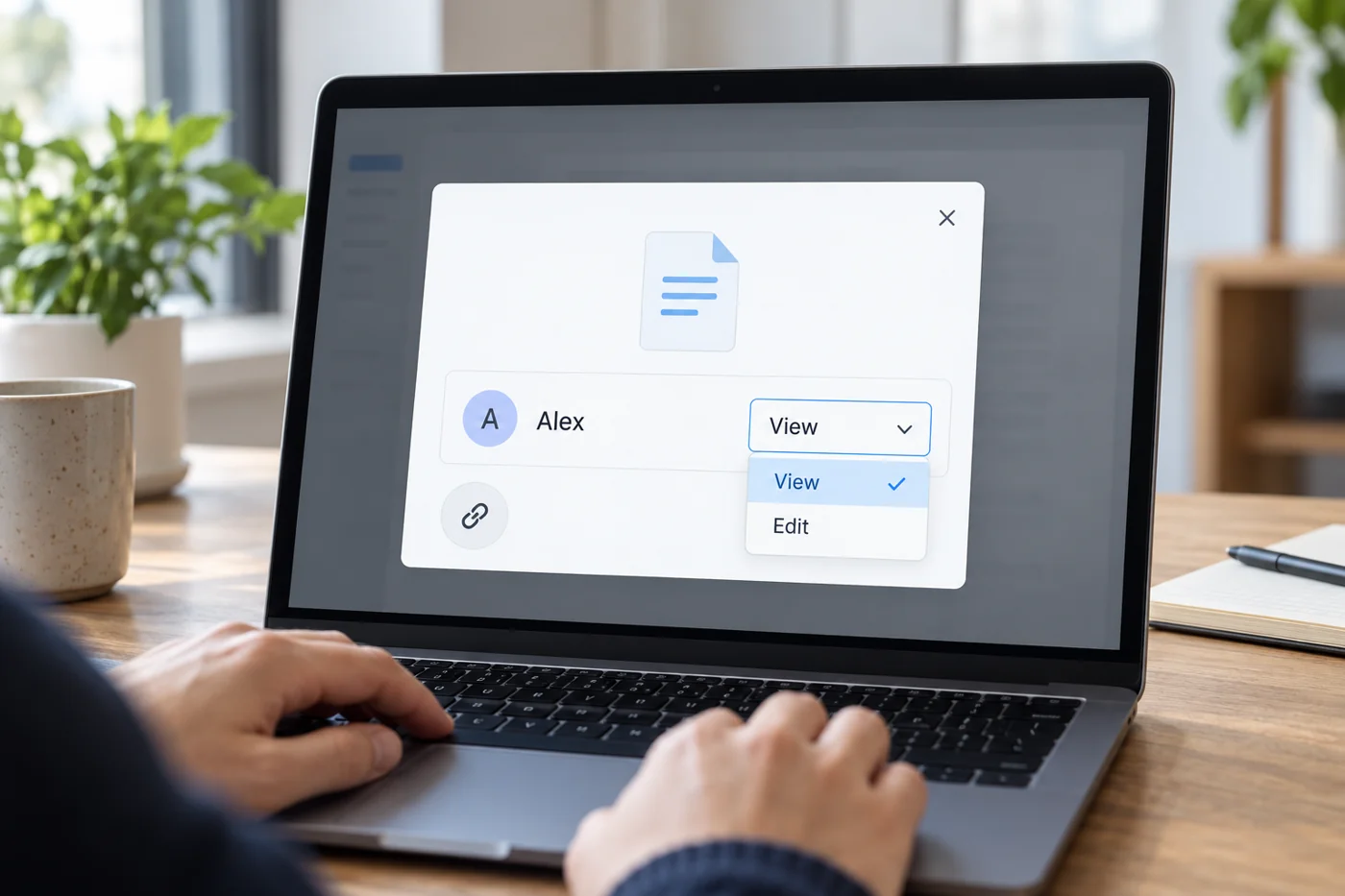
Establish whether the person should read, comment or edit. Following internal rules, choose the least permission sufficient for the collaboration. Editing rights are not a necessary addition to every share.
Also decide whether access belongs to individuals, an existing group or another defined audience. Services use different labels. Read the displayed meaning and official application help rather than selecting a familiar-sounding option alone.
Check the file and its surroundings
Open the intended version and inspect comments, attachments or other content outside the sharing purpose. A whole-folder link may expose more material than a single-file link. Choose scope deliberately.
Where higher-level permissions influence sharing, review them with the responsible person too. An additional link does not necessarily restrict existing rights. One visible setting may therefore be only part of the answer about access.
Test with the recipient
For new collaboration, ask for confirmation that the file opens through the recipient's own account and the required action is available. Do not share personal credentials to bypass failure. Resolve the permission or choose an authorized alternative handover route instead.
Explain what the file contains and what action is expected. A bare link leaves unclear whether someone should read, review or change it. At the end of collaboration, consider whether access remains necessary. Coordinate permission changes so ongoing work is not unexpectedly interrupted. Keep any required record of the sharing decision with the project rather than relying on memory of the original message.
Check sharing from the recipient's perspective
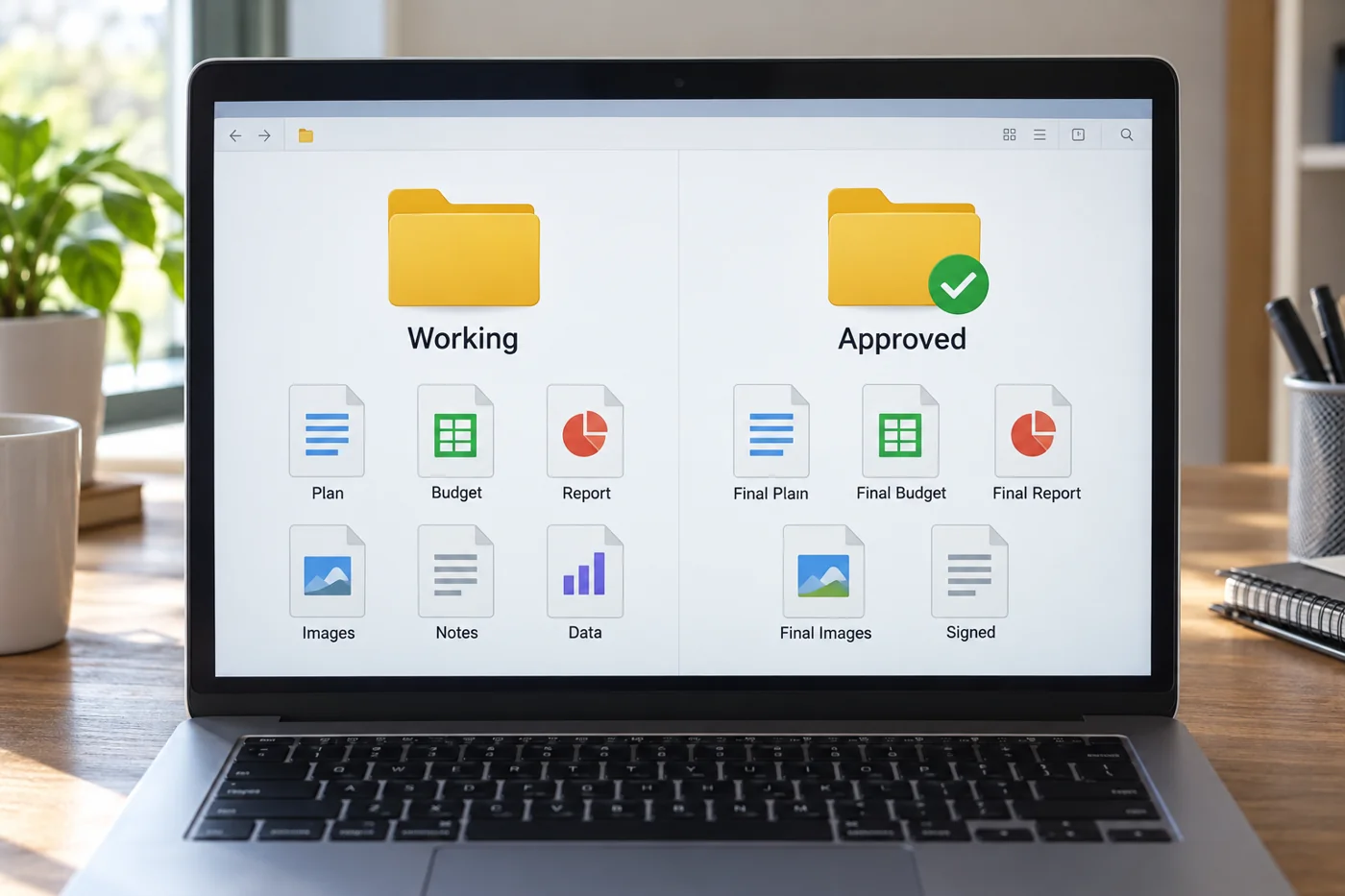
Suppose a colleague needs to read a completed analysis without changing its figures. They need access to the result, not automatically to the entire working folder containing drafts and unrelated cases. Select the smallest suitable item and the required access level. If editing is expected, explicitly state which parts should be changed.
Test the link in the intended recipient's context. A link working in your own signed-in browser establishes only your access. In a shared internal system, brief confirmation from the recipient may be enough; particular access arrangements may need help from the responsible administrator. Do not share credentials to bypass that check.
Consider whether access covers named people or a wider group. Available options depend on the service and organisational rules. Microsoft explains different sharing methods and permissions for OneDrive. Do not assume the same labels mean the same thing in another application; the relevant question is who can actually perform which action.
Keep the assignment with the link
In the accompanying message, explain whether the file is for information, review or editing. Add a deadline only where a response is actually required. “Here is the link” leaves it unclear whether there is an assignment at all and often creates unnecessary questions.
When collaboration ends or the group changes, review what access remains necessary. An old link may stay in messages or notes for a long time. The sharing decision should therefore account for later use as well as the moment of sending. At sensitive transitions, record who reviews the permission so that the task does not fall between business ownership and technical administration. Where a link is replaced, tell active users which reference they should retain instead of leaving competing routes without explanation.
A link should also lead to the intended material rather than merely a broad starting page. Check whether the recipient can identify the named item without another search. When several files have similar names, a clear title and short version reference help. Correct outdated references in reused messages or templates when the authoritative location changes, and explain the replacement to people actively using the former route.