Arrange the information clearly
Put the name, role and relevant contact methods in a readable order. Remove outdated notices such as past event dates. If several telephone numbers are necessary, label their purposes clearly. A recipient should not have to guess which number is intended for their inquiry.
Limit promotional content and extra links when they displace the contact block. A logo can supplement the information, but should not replace essential details. Check the spelling of the domain and open every link. Correct-looking text may still point to an old or misspelled address, especially after a company or domain change.
Read a real test message
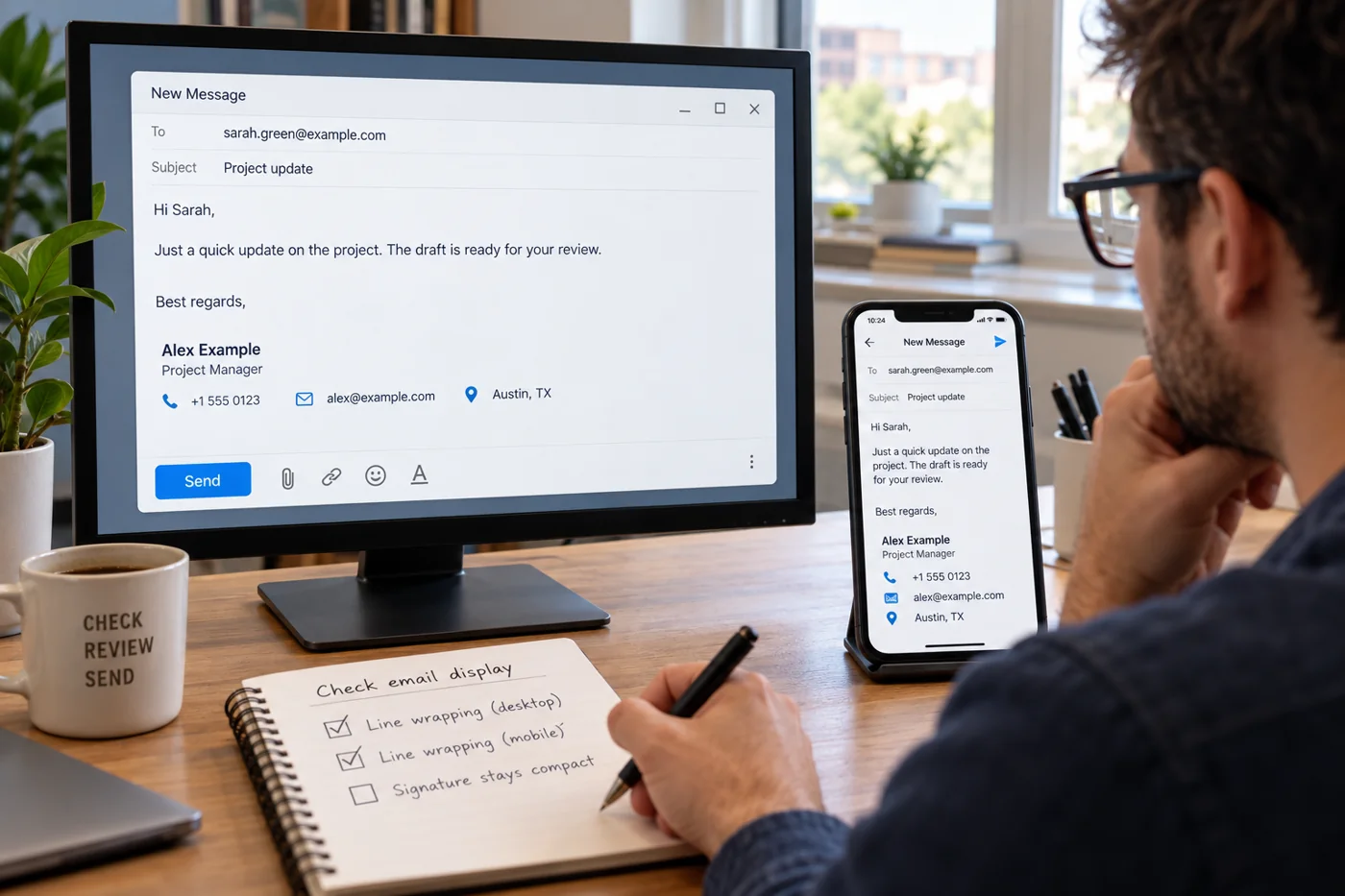
Send the signature to another controlled mailbox and open the message on a desktop and a phone. Look for awkward line breaks, unreadable text and unusual spacing. Also inspect a reply: a signature that looks fine alone may occupy excessive space in a longer conversation.
View the message without loaded images if your mail application allows it. The name and contact details should remain understandable. Check telephone numbers and web addresses as usable information, not merely graphic elements. A screenshot of the signature does not establish that its links work after sending.
Compare the ways you send mail
Review the signatures used in webmail, the desktop application and the phone. Depending on the arrangement, an update may not automatically appear everywhere. Also check which signature is selected when several sender accounts are available. It should match the address actually used.
Keep an approved text version in a known location and identify who maintains it. Changes to a role or contact method can then be applied deliberately. Finish by checking both a newly composed message and a reply, because those cases may use different settings. Record any application still needing an update rather than assuming one successful test covers them all.